
UGC Editing Hacks: Cut Your Production Time in Half as a New Creator
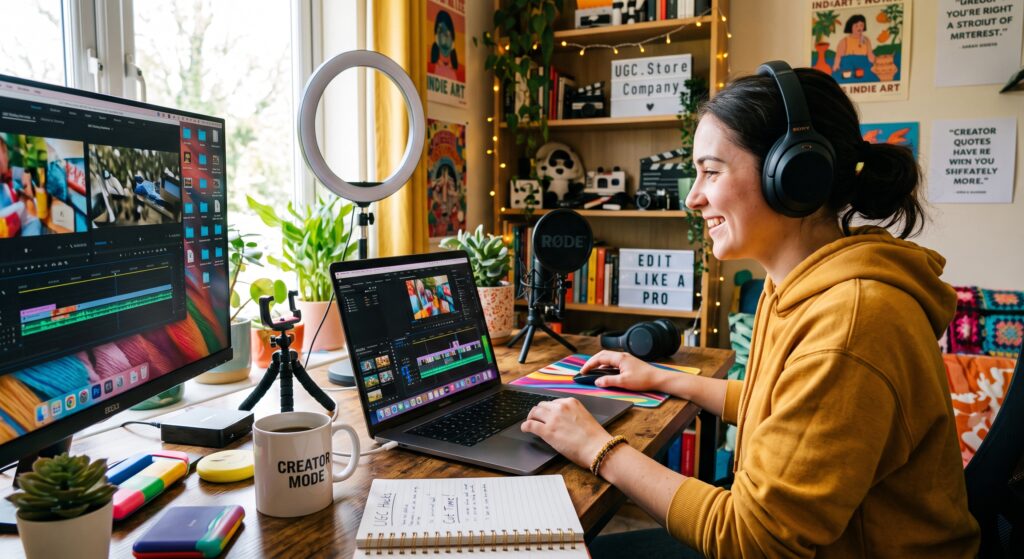
You have filmed your UGC video. The lighting was perfect, the audio was clean, and your on-camera energy was exactly right. Now comes the part that most beginner UGC creators dread: the editing. You import the footage into your app, stare at the timeline, and suddenly a 30-second video feels like a feature film. You cut one segment, then second-guess it. You add captions manually, typing every word, syncing every timestamp. You adjust the color, then adjust it again, then revert to the original. Two hours later, you have a finished video — and a sinking realization that at this pace, you can only produce two or three videos per week, which means your income will always be capped by your editing speed.
This is the bottleneck that destroys more UGC careers than any creative challenge. Filming is fun. Editing feels like work. And when editing takes longer than filming, the math stops working. A creator who spends two hours filming and three hours editing is earning less per hour than a minimum-wage job. A creator who spends two hours filming and forty-five minutes editing is building a scalable business.
The good news is that editing speed is not a talent. It is a system. Every professional UGC creator who edits ten videos per week is not working harder than you. They are working smarter. They use templates, shortcuts, automation, and workflow optimizations that cut their production time in half without sacrificing quality. This guide gives you those exact hacks. Implement them this week, and you will transform from a slow, frustrated editor into a fast, efficient UGC machine.
“My first UGC video took me four hours to edit. I manually typed every caption, individually adjusted every clip length, and exported three different versions because I could not decide on the right settings. Six months later, my average edit time is 35 minutes per video. I use the same app — CapCut — but I approach it like an assembly line instead of an art project. The quality is identical. The speed is not even comparable.”
— Leo K., UGC Creator (Tech & Fitness), $8K/month
The Editing Time Trap: Why Beginners Spend 3x Longer Than Necessary
Before we talk about solutions, we need to understand the problem. Why do beginner UGC creators spend so long in the editing bay? The answer is not lack of skill. It is lack of process. Beginners approach each video as a unique creative challenge. They reinvent the wheel every time — new fonts, new transitions, new color grades, new caption styles. They obsess over micro-decisions that brands do not notice and viewers do not care about.
Here is the truth that will set you free: UGC content is not cinema. It is commerce. The brand does not care if your transition is a smooth fade or a hard cut, as long as the video converts. The viewer does not care if your caption font is Montserrat or Open Sans, as long as they can read it. Your job is not to create a masterpiece. Your job is to create a clear, engaging, authentic video that delivers the brief — and to do it fast enough that you can profit from your time.

The three biggest time wasters in beginner UGC editing are:
Perfectionism. Spending 20 minutes color-grading a video that will be watched on a phone screen in bright daylight. Tweaking audio levels that are already within acceptable range. Rearranging clips that are already in the right order.
Reinvention. Creating a new visual style for every video instead of using a template. Manually adding captions instead of using auto-caption tools. Searching for the perfect song instead of using a pre-curated music library.
Decision fatigue. Facing too many choices at every step — which font, which transition, which export setting, which thumbnail frame. Every decision consumes mental energy, and by the time you reach the final export, you are exhausted.
The hacks in this guide eliminate all three of these time wasters. They replace perfectionism with standards. They replace reinvention with templates. They replace decision fatigue with defaults.
Hack 1: The Auto-Caption Revolution
If you do one thing from this entire guide, let it be this: stop typing captions manually. Auto-caption features in modern editing apps are fast, accurate, and customizable. They reduce caption creation from 30 minutes of tedious typing to 3 minutes of light proofreading.
CapCut’s auto-caption tool is the industry standard for UGC creators. Import your video, tap “Auto Captions,” select your language, and the app generates perfectly timed captions in under 30 seconds. The accuracy is above 95% for clear speech, and the remaining 5% takes two minutes to correct. Compare that to manually typing a 200-word script, syncing every line to the correct timestamp, and adjusting text duration — a process that easily consumes 25–30 minutes per video.
The advanced auto-caption workflow:
- Generate auto-captions immediately after importing
- Watch the video once with captions on, pausing to fix any transcription errors
- Adjust the caption style using a saved preset (see Hack 2)
- Export
Total time: 5 minutes. Down from 30. That single hack saves you 25 minutes per video. If you edit 10 videos per week, that is 4 hours reclaimed — enough time to film and edit 3 additional videos.

“I used to think auto-captions looked unprofessional. Then I realized that every top UGC creator I followed was using them. The difference between manual and auto captions is invisible to 99% of viewers. The difference in my editing time was 25 minutes per video — which meant I could take on twice as many clients.”
— Priya N., UGC Creator (Beauty & Lifestyle), $6K/month
Hack 2: Template Presets — Your Editing Uniform
The second biggest time saver is template presets. A preset is a saved combination of settings — font, color, size, position, animation — that you apply with a single tap. Instead of choosing a caption font, adjusting its size, picking a color, and positioning it on screen for every single video, you create one preset and use it forever.
Your CapCut preset library should include:
- Caption preset: White text with black outline, centered bottom third, medium size, pop-in animation
- Hook text preset: Bold yellow text with drop shadow, top-center, large size, slide-in animation
- Brand mention preset: Small white text, bottom-right corner, no animation, for subtle product name callouts
- Transition preset: Hard cut for 90% of clips, with one smooth fade saved for special moments
Create these presets once. Apply them forever. The mental energy you save by not choosing fonts is energy you can spend on the actual creative decisions that matter — pacing, hook strength, and emotional delivery.
Pro tip: Create separate preset sets for different niches. Beauty UGC might use soft pink accent colors and elegant serif fonts. Tech UGC might use bold sans-serif and electric blue highlights. Fitness UGC might use high-contrast yellow and aggressive motion graphics. Having niche-specific presets ready means you never start a project from a blank slate.
Hack 3: The Rough-Cut-First Method
Beginners edit sequentially. They import clip one, trim it perfectly, add effects, move to clip two, trim it perfectly, add effects, and so on. This is painfully slow because you are making final decisions before you have seen the whole video.
Professional editors use the rough-cut-first method. Import all clips. Drag them onto the timeline in roughly the right order. Do not trim precisely yet. Do not add effects. Just arrange the skeleton of the video — beginning, middle, end. Watch the rough cut once. Now you can see the pacing, the flow, and the weak points. Make structural adjustments. Then and only then do you go back and fine-trim each clip.
This method works because it separates structure from detail. You cannot judge whether a clip should be 2.3 seconds or 2.7 seconds until you know how it flows into the next clip. Making micro-decisions before macro-decisions is like choosing paint colors before you have built the walls.
The rough-cut-first timeline:
- Step 1 (3 minutes): Import all footage, arrange on timeline in order
- Step 2 (2 minutes): Watch rough cut, note pacing issues and weak transitions
- Step 3 (5 minutes): Adjust clip order, trim to approximate lengths
- Step 4 (5 minutes): Fine-trim each clip, add transitions
- Step 5 (5 minutes): Add captions, color, audio polish
Total rough-cut-first time: 20 minutes. Total sequential editing time: 45+ minutes. The method alone saves 25 minutes per video.
Hack 4: Batch Processing — The Factory Approach
The most efficient UGC creators do not edit one video at a time. They batch process. Batching means grouping similar tasks and completing them together rather than switching between different types of work.
The batch editing workflow:
- Batch 1 — Import and organize: Import all videos for the week. Rename files clearly. Create folders by client or project. Time: 10 minutes for 5 videos.
- Batch 2 — Rough cuts: Create rough cuts for all 5 videos. Do not add captions or effects yet. Time: 25 minutes.
- Batch 3 — Captions: Generate auto-captions for all 5 videos. Proofread and correct all at once. Time: 20 minutes.
- Batch 4 — Polish: Add presets, color correction, and audio adjustments to all 5 videos. Time: 20 minutes.
- Batch 5 — Export: Export all 5 videos with the same settings. Upload to delivery platform. Time: 15 minutes.
Total batch time for 5 videos: 90 minutes. Total sequential time for 5 videos: 200+ minutes. Batching saves time because it eliminates the mental switching cost of jumping between different tasks. Your brain stays in “caption mode” for 20 minutes instead of entering and exiting caption mode five separate times.
Hack 5: The 80/20 Audio Fix
Beginners spend disproportionate time on audio because bad audio is viscerally unpleasant. But the Pareto principle applies here: 80% of audio problems are solved by 20% of possible adjustments.
The 80/20 audio workflow:
- Normalize volume: CapCut’s auto-level feature brings all audio to a consistent volume. One tap. 10 seconds.
- Noise reduction: If you filmed in a noisy environment, use the noise reduction filter. One tap. 10 seconds.
- Add background music: Choose from your pre-curated library of 10–15 royalty-free tracks. One drag. 10 seconds.
- Duck the music: Lower music volume during speech. CapCut’s auto-duck feature does this automatically. One tap. 10 seconds.
Total audio time: 40 seconds. Beginner audio time: 10–15 minutes of manual level adjustments, EQ tweaking, and compression experiments that make no audible difference on a phone speaker.
The same principle applies to color correction. UGC videos are watched on phones, often outdoors, often with screen brightness below 50%. Your subtle color grade is invisible to the viewer. Use CapCut’s auto-adjust feature, which fixes exposure and white balance in one tap. If the video still looks off, apply one of your three saved color presets — warm, cool, or neutral. Done. Move on.
Hack 6: Keyboard Shortcuts and Gesture Mastery
Every second you spend navigating menus is a second not spent creating. Professional editors memorize shortcuts until their fingers move faster than their conscious thoughts.
Essential CapCut shortcuts:
- Split clip: Tap the clip at the playhead position
- Delete segment: Select and tap delete
- Undo: Two-finger tap
- Duplicate: Select clip, tap duplicate
- Speed adjustment: Select clip, tap speed, drag slider
Spend one session — 30 minutes — intentionally using only shortcuts. Do not touch the menu buttons. Force your muscle memory to develop. After one session, your editing speed will increase by 30–40% permanently.
Hack 7: The Pre-Curated Asset Library
Decision fatigue is real, and it is deadly to editing speed. Every time you browse for a song, a font, a sticker, or a transition, you are burning mental energy on a choice that does not matter.
Eliminate these decisions by creating a pre-curated asset library:
Music: 10–15 royalty-free tracks that match your niche’s energy. Organized by mood — upbeat, calm, dramatic, funny. Never browse for music again. Just pick from your list.
Fonts: 3 fonts maximum. One for captions, one for hooks, one for subtle text. CapCut saves your recent fonts, so your three choices are always one tap away.
Stickers/Effects: 5 go-to effects that you use regularly. A subtle zoom, a quick flash, a text pop. Save them as favorites.
Color presets: 3 presets as mentioned in Hack 2. Warm for lifestyle, cool for tech, vibrant for fitness.
When your entire visual toolkit fits on a single screen, you eliminate the paralysis of infinite choice. You also develop a consistent visual identity that brands recognize and trust.
Hack 8: Export Settings You Never Change
Beginners treat every export like a new decision. What resolution? What frame rate? What bitrate? Should I export in 4K or 1080p? Portrait or square?
Professional UGC creators have one export preset that they use for 95% of their work:
- Resolution: 1080p (4K if your phone supports it and the brand requests it)
- Frame rate: 30fps
- Aspect ratio: 9:16 vertical
- Format: MP4
- Bitrate: High quality
Save this as your default export preset in CapCut. One tap. No decisions. The 5% of projects that need different settings — a 1:1 Instagram version, a 4K deliverable — can be handled separately. Do not let edge cases slow down your standard workflow.
The Compound Effect: What Faster Editing Actually Means
These hacks are not just about saving time. They are about transforming your UGC business model. When editing takes 2 hours per video, your effective hourly wage is low and your output is capped. When editing takes 40 minutes per video, everything changes.

The math for a slow editor:
- 10 videos per week × 2 hours editing = 20 hours in the editing bay
- Plus 10 hours filming = 30 hours total
- At $100 per video = $1,000 per week = $33/hour
The math for an optimized editor:
- 14 videos per week × 45 minutes editing = 10.5 hours in the editing bay
- Plus 10 hours filming = 20.5 hours total
- At $100 per video = $1,400 per week = $68/hour
Same skill level. Same video quality. Same rates. Double the hourly income, 40% more output, and 10 hours per week reclaimed for rest, learning, or taking on even more clients. That is the power of editing efficiency.
CapCut Features Ranked by Time Savings
Not all editing features are created equal. Some save minutes. Some save seconds. Here is the definitive ranking of CapCut features by their impact on UGC editing speed:

Auto Captions (95/100): The single biggest time saver. 25–30 minutes reduced to 3–5 minutes.
Template Presets (88/100): Eliminates repetitive styling decisions. Saves 10–15 minutes per video.
Batch Export (82/100): Export multiple videos with identical settings simultaneously. Saves 5–10 minutes per project.
Auto Beat Sync (75/100): Automatically cuts clips to music beats. Useful for high-energy UGC formats. Saves 5–8 minutes.
Background Remover (70/100): One-tap green screen effect without a physical green screen. Saves 10+ minutes of manual masking.
Text-to-Speech (65/100): Useful for voiceover-style UGC when you cannot record audio. Saves 5–10 minutes.
Speed Ramps (55/100): Dramatic slow-motion and fast-motion effects. Niche use but powerful when needed.
Sticker/Emoji Search (40/100): Fun but rarely necessary for professional UGC. More distraction than time-saver.
The UGC.Store Advantage: Faster Delivery, Faster Payment
Editing speed does not just affect your hourly wage. It affects your client relationships. Brands love creators who deliver quickly. A creator who promises delivery in 5 days and delivers in 2 builds trust and earns repeat business. A creator who promises 5 days and delivers in 7 damages their reputation.
UGC.Store rewards fast delivery through its platform design. Creators with fast turnaround times and high approval rates appear higher in search results. Brands can filter by delivery speed when browsing for talent. Your editing efficiency directly translates into platform visibility and booking frequency.

The platform also streamlines the delivery process. Upload your finished video directly to the campaign portal. The brand reviews, approves, and payment is released from escrow. No back-and-forth email chains. No file transfer confusion. No invoice chasing. The time you save on administrative tasks is time you can spend filming and editing more content.
Create your creator profile on UGC.Store and start building a reputation for fast, professional delivery.
Learn more about how we support efficient creators on our About Us page.
The 7-Day Editing Speed Challenge
Reading about hacks is not enough. You need to implement them. Here is a 7-day challenge that will permanently rewire your editing workflow:
Day 1: Create your caption, hook text, and color presets in CapCut. Save them.
Day 2: Curate your music library. Find 10 tracks. Save them to favorites.
Day 3: Film one video. Edit it using only auto-captions, presets, and auto-adjust. Time yourself.
Day 4: Film two videos. Edit them using the rough-cut-first method. Time yourself.
Day 5: Film three videos. Edit them using batch processing — all rough cuts, then all captions, then all exports. Time yourself.
Day 6: Review your times from Days 3–5. Identify your remaining bottlenecks. Research one shortcut or feature to eliminate them.
Day 7: Film and edit one video as fast as possible using everything you have learned. Race against your Day 3 time.
By the end of this challenge, you will have a personalized, optimized editing workflow that cuts your production time in half. You will also have 7 new portfolio videos ready to upload.
Editing Is a Skill, Not an Art
The final mindset shift is this: stop treating editing as a creative expression and start treating it as a technical skill. Creativity happens during filming — in your performance, your energy, your authentic reactions. Editing is the assembly line that packages that creativity for consumption. It should be fast, consistent, and invisible.
The best UGC editors are not the ones who create the most beautiful videos. They are the ones who create good enough videos in the shortest amount of time, freeing up hours to film more, pitch more, and earn more. Your editing speed is the throttle on your income. Remove the bottleneck, and your UGC career accelerates.
Join UGC.Store and turn your faster editing workflow into faster income growth.
